mirror of
https://github.com/VSCodium/vscodium.git
synced 2026-04-13 20:28:18 +10:00

77 lines
3.7 KiB
Markdown
77 lines
3.7 KiB
Markdown
<!-- order: 25 -->
|
|
|
|
# Usage
|
|
|
|
## Table of Contents
|
|
|
|
- [Sign in with GitHub](#signin-github)
|
|
- [Accounts authentication](https://github.com/VSCodium/vscodium/blob/master/docs/accounts-authentication.md)
|
|
- [How do I run VSCodium in portable mode?](#portable)
|
|
- [How do I fix the default file manager?](#file-manager)
|
|
- [How do I press and hold a key and have it repeat in VSCodium?](#press-and-hold)
|
|
- [How do I open VSCodium from the terminal?](#terminal-support)
|
|
- [From Linux .tar.gz](#from-linux-targz)
|
|
|
|
## <a id="signin-github"></a>Sign in with GitHub
|
|
|
|
In VSCodium, `Sign in with GitHub` is using a Personal Access Token.<br />
|
|
Follow the documentation https://docs.github.com/en/github/authenticating-to-github/creating-a-personal-access-token to create your token.<br />
|
|
Select the scopes dependending on the extension which needs access to GitHub. (GitLens requires the `repo` scope.)
|
|
|
|
### Linux
|
|
|
|
If you are getting the error `Writing login information to the keychain failed with error 'The name org.freedesktop.secrets was not provided by any .service files'.`, you need to install the package `gnome-keyring`.
|
|
|
|
## <a id="portable"></a>How do I run VSCodium in portable mode?
|
|
You can follow the [Portable Mode instructions](https://code.visualstudio.com/docs/editor/portable) from the Visual Studio Code website.
|
|
- **Windows** / **Linux** : the instructions can be followed as written.
|
|
- **macOS** : portable mode is enabled by the existence of a specially named folder. For Visual Studio Code that folder name is `code-portable-data`. For VSCodium, that folder name is `codium-portable-data`. So to enable portable mode for VSCodium on Mac OS, follow the instructions outlined in the [link above](https://code.visualstudio.com/docs/editor/portable), but create a folder named `codium-portable-data` instead of `code-portable-data`.
|
|
|
|
## <a id="file-manager"></a>How do I fix the default file manager (Linux)?
|
|
|
|
In some cases, VSCodium becomes the file manager used to open directories (instead of apps like Dolphin or Nautilus).<br />
|
|
It's due to that no application was defined as the default file manager and so the system is using the latest capable application.
|
|
|
|
To set the default app, create the file `~/.config/mimeapps.list` with the content like:
|
|
```
|
|
[Default Applications]
|
|
inode/directory=org.gnome.Nautilus.desktop;
|
|
```
|
|
|
|
You can find your regular file manager with the command:
|
|
```
|
|
> grep directory /usr/share/applications/mimeinfo.cache
|
|
inode/directory=codium.desktop;org.gnome.Nautilus.desktop;
|
|
```
|
|
|
|
## <a id="press-and-hold"></a>How do I press and hold a key and have it repeat in VSCodium (Mac)?
|
|
|
|
This is a common question for Visual Studio Code and the procedure is slightly different in VSCodium because the `defaults` path is different.
|
|
|
|
```bash
|
|
$ defaults write com.vscodium ApplePressAndHoldEnabled -bool false
|
|
```
|
|
|
|
## <a id="terminal-support"></a>How do I open VSCodium from the terminal?
|
|
|
|
For macOS and Windows:
|
|
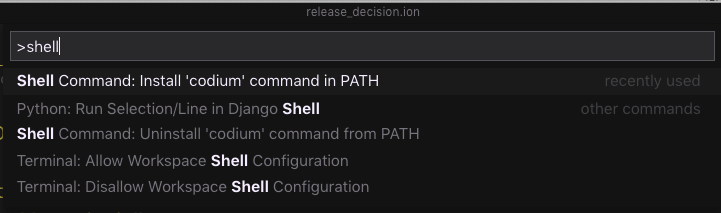
- Go to the command palette (View | Command Palette...)
|
|
- Choose `Shell command: Install 'codium' command in PATH`.
|
|
|
|
|
|
|
|
This allows you to open files or directories in VSCodium directly from your terminal:
|
|
|
|
```bash
|
|
~/in-my-project $ codium . # open this directory
|
|
~/in-my-project $ codium file.txt # open this file
|
|
```
|
|
|
|
Feel free to alias this command to something easier to type in your shell profile (e.g. `alias code=codium`).
|
|
|
|
On Linux, when installed with a package manager, `codium` has been installed in your `PATH`.
|
|
|
|
### <a id="from-linux-targz"></a>From Linux .tar.gz
|
|
|
|
When the archive `VSCodium-linux-<arch>-<version>.tar.gz` is extracted, the main entry point for VSCodium is `./bin/codium`.
|